Showing posts with label Others. Show all posts

TKPROF

TKPROF

Obtain the trace file. The below will give the location on the database server:

select name, value from v$diag_info where name like '%Trace%';
OR
select name, value from v$parameter where name like 'user_dump_dest'

2. Convert to TKPROF

tkprof <filename.trc> <output_filename_SORT.txt> explain=apps/<password> sort='(prsela,exeela,fchela)' 

Intel I217LM ethernet controller not detected

Intel I217LM ethernet controller not detected

Solution

The Linux* e1000e driver supports PCI Express* Gigabit Network Connections except the 82575, 82576, 82580, and I350.

Download e1000e
Overview
Building and installation
For information concerning driver configuration details, refer to the Read Me file in the Download Center.


Overview

The Linux* base drivers support the 2.4.x and 2.6.x kernels. They include support for Itanium® 2-based systems.

The drivers are only supported as a loadable module. We don't supply patches against the kernel source to allow for static linking of the drivers. For questions related to hardware requirements, see the documentation supplied with your Intel® Gigabit Network Adapter. All hardware requirements listed apply for use with Linux.

Features now available in supported kernels:

Native VLANs
Channel Bonding (teaming)
SNMP
Find Channel Bonding documentation in the Linux kernel source: /documentation/networking/bonding.txt

This release doesn't support the driver information previously displayed in the /proc file system. You can also use ethtool (version 1.6 or later), lspci, and ifconfig to get the same information. Find instructions on updating ethtool in the additional configurations section.

Note The Intel® 82562v 10/100 Network Connection only provides 10/100 support.
back to top back to top

Building and installation

To build a binary RPM* package of this driver, run rpmbuild -tb e1000e.tar.gz.

Notes
For the build to work properly, the currently running kernel must match the version and configuration of the installed kernel sources. If you have just recompiled the kernel, reboot the system.

RPM functionality was only tested in Red Hat distributions.

Download current e1000e package from Download Center or SourceForge. Move the base driver tar file to the directory of your choice. For example, use "/home/<USERNAME>/e1000e" or "/usr/local/src/e1000e".

Untar/unzip the archive, where <x.x.x> is the version number for the driver tar file:

tar zxf e1000e-<x.x.x>.tar.gz
Change to the driver src directory, where <x.x.x> is the version number for the driver tar:

cd e1000e-<x.x.x>/src/
Compile the driver module:

# make install
The binary installs as:

/lib/modules/<KERNEL VERSION>/kernel/drivers/net/e1000e/e1000e.[k]o
The install location listed above is the default. Location may differ for various Linux distributions.

Load the module using either the insmod or modprobe command:

modprobe e1000e insmod e1000e
Note that you can use the insmod command for 2.6 kernels if you specify the full path to the driver module. For example:

insmod /lib/modules/<KERNEL VERSION>/kernel/drivers/net/e1000e/e1000e.ko
With 2.6 based kernels, make sure that older e1000e drivers are removed from the kernel before you load the new module:

rmmod e1000e; modprobe e1000e
Assign an IP address to the interface by entering the following, where <x> is the interface number:

ifconfig eth<x> <IP_address>
Verify that the interface works. Enter the following, where <IP_address> is the IP address for another machine on the same subnet as the interface you are testing:

ping <IP_address>

Note
Some systems have trouble supporting MSI and/or MSI-X interrupts. If your system must disable this style of interrupt, build and install the driver with the command:

# make CFLAGS_EXTRA=-DDISABLE_PCI_MSI install
Normally the driver generates an interrupt every two seconds If you're no longer seeing interrupts in cat /proc/interrupts for the ethX e1000e device, then this workaround may be necessary.

Reference :
Intel site

Your boot partition is on a disk using the GPT partitioning scheme but this machine cannot boot using GPT

Your boot partition is on a disk using the GPT partitioning scheme but this machine cannot boot using GPT

Following error after telling anaconda to install on pre-existing partitions (with GPT label):


On Partitioning screen, press Ctrl + Alt + F2 to get to a shell prompt.

$ parted /dev/sda -s mklabel msdos

Press Ctrl + Alt + F6 to return to the partitioning screen

RC-20200: Fatal: Could not find Unzip. At this time only Native UnZip 5.X is supported.

RC-20200: Fatal: Could not find Unzip. At this time only Native UnZip 5.X is supported.

While cloning database Tier

Error :
RC-20200: Fatal: Could not find Unzip. At this time only Native UnZip 5.X is supported.

Please make sure you have UnZip 5.X in your path and try again…

 ERROR while running Apply…

 ERROR: Failed to execute /clone/oracle/product/11.2.0/appsutil/clone/bin/adclone.pl

  Please check logfile.

Solution 1

Which unzip should point to $ORACLE_HOME/bin/unzip

Take the backup of existing unzip from $ORACLE_HOME/bin

cd $ORACLE_HOME/bin

mv unzip unzip_bkp

cp /usr/bin/unzip to $ORACLE_HOME/bin

Make sure the unzip utility under /usr/bin should be of version 5.X and not 6

Solution 2

As root user, rename the default unzip (/usr/bin/unzip) to a temporary filename (e.g. /usr/bin/unzip-ver6), perform the task, and then rename unzip-ver6 to the original name when completed.

# mv /usr/bin/unzip /usr/bin/unzip-ver6

Solution 3

unzip utility
https://oss.oracle.com/el4/unzip/unzip.html


R12: Error "Java Exception in Thread 'Main' java.lang.OutOfMemoryError: Java Heap Space

R12: Error "Java Exception in Thread 'Main' java.lang.OutOfMemoryError: Java Heap Space

Increase the amount of memory available as follows:

a. Login to the instance as system administrator
b. Go to Concurrent -> Program -> Define
c. Search for the following concurrent program
d. In the 'Executable' group, there is a field named 'Options'.
Enter the value '-ms2048m -mx2048m' as the value for this field.
This will set the heap space min and max size to 2GB.
Bounce the concurrent managers.

e. Save the change and retest the issue.

Delete large number of files - LINUX

Delete large number of files - LINUX

Go to the folder location

cd < folder name>

A faster way of deleting files is the -delete flag:
find . -type f -delete
To show the filenames while deleting them:
find . -type f -print -delete
To show how many files will be deleted, then time how long it takes to delete them:
ls -1 | wc -l && time find . -type f -delete
 The above commands will remove all the files in the folder, then you can use rm -rf to remove the folder.

Unable to authenticate session – EBS R12


Unable to authenticate session – EBS R12


EBS login error:

“Unable to Authenticate Session”


Start the Internet Explorer with the option '-noframemerging', as described in Note 389422.1 - 'Recommended Browsers for Oracle E-Business Suite Release 12' under the Known issues.

 
SOLUTION 1:

1. Clear the Browser cache.
2. Stop all Browser sessions.
3. Start a new Browser session and logon to the Instance.

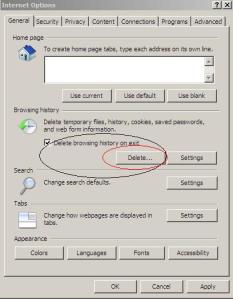
Go to Tools >Internet Options > Click on delete browsing Cache (shown below)


SOLUTION 2:


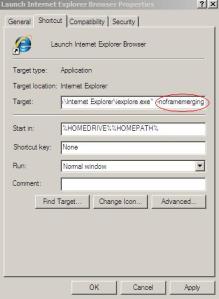
1) Start > Program Files
2) Right click on the Internet Explorer icon and select Properties
3) Add -nomerge to the end of the link in the Target field i.e.
“C:\Program Files\Internet Explorer\iexplore.exe” -noframemerging
4) Click the OK button to close the window


R12: Using IE8 to access two EBS Instances runs in error "Unable To Authenticate Session" [ID 1098563.1]
R12 - logon to a cloned Instance is failing with error 'Unable to Authenticate Session' [ID 744086.1]
Unable To Authenticate Session Error When Login to Different R12 Instance in Same IE Session [ID 1159313.1]
Unable To Authenticate Session When Trying To Get To Main Login Screen [ID 1353483.1]


Oracle Case sensitive password


Oracle Case sensitive password

Check value of SEC_CASE_SENSITIVE_LOGON parameter


SQL> show parameter sec_case_sensitive_logon; 

NAME TYPE VALUE
-------------------------------------------------- 
sec_case_sensitive_logon boolean TRUE

For testing purpose create a user and grant required privileges
SQL> create user test identified by TeSt; User created. SQL> grant create session to test; Grant succeeded.

Try to connect user with case sensitive password, it should work.
SQL> conn test/TeSt Connected.

Lets try to connect user with password in Lower Case
SQL> conn / as sysdba

Connected. 

SQL> conn test/test 
ERROR:
ORA-01017: invalid username/password; logon denied
Warning: You are no longer connected to ORACLE.
For re testing, configure Case Sensitivity off for user name and password 


SQL> conn / as sysdba
Connected. 

SQL> show parameter sec_case_sensitive_logon;
NAME TYPE VALUE
------------------------------------ -----------
sec_case_sensitive_logon boolean TRUE

SQL> alter system set sec_case_sensitive_logon=false scope=both;
System altered.

SQL> show parameter sec_case_sensitive_logon
NAME TYPE VALUE 
------------------------------------ -----------
 sec_case_sensitive_logon boolean FALSE
 

Try to login again with password in lower-case.
SQL> conn testuser/mypassword Connected.

Notification Mailer MOS

Notification Mailer MOS

  • Troubleshooting Assistant: Oracle Workflow (1600307.2)           
  • 11i-12 Unable to Connect to Mail Store in Workflow Notification Mailer Logs (741352.1)           
  • How To Troubleshoot When Email Notification Responses Are Processed But The Approval Workflow Still Shows In Process (458665.1)           
  • Java Notification Mailer Fails to Send Email Notifications with Framework Regions (339718.1)           
  • On and Off Email Notifications (3367780)            
  • Oracle Workflow Documentation Updates for 11i.ATG_PF.H.delta.5 (RUP 5) (412709.1)           
  • 11i - 12 How To Troubleshoot Java-based Workflow Notification Mailer (242941.1)       
  • A System Administrators' Guide: Oracle Applications Workflow (139745.1)           
  • How to handle or reassign System : Error (WFERROR) Notifications that default to SYSADMIN (1448095.1)           
  • 11i - 12 How to Perform a Meaningful SMTP Telnet Test to Troubleshoot Java Mailer For Sending Email Notifications (753845.1)           
  • 11i - 12 Troubleshooting Inbound & Outbound Email Notifications (1184846.1)           
  • 11i-12 Troubleshooting Workflow Java Notification Mailer - Technical Reference (1191125.1)           
  • How to Enable notification to SYSADMIN of Invalid Email Address (750684.1)           
  • Java Notification Mailer Fails to Send Email Notifications with Framework Regions (339718.1)           
  • On and Off Email Notifications (3367780)            
  • Oracle Workflow Documentation Updates for 11i.ATG_PF.H.delta.5 (RUP 5) (412709.1)           
  • 11i - 12 How To Troubleshoot Java-based Workflow Notification Mailer (242941.1)       
  • A System Administrators' Guide: Oracle Applications Workflow (139745.1)           
  • How to handle or reassign System : Error (WFERROR) Notifications that default to SYSADMIN (1448095.1)           
  • 11i - 12 How to Perform a Meaningful SMTP Telnet Test to Troubleshoot Java Mailer For Sending Email Notifications (753845.1)           
  • 11i - 12 Troubleshooting Inbound & Outbound Email Notifications (1184846.1)           
  • 11i-12 Troubleshooting Workflow Java Notification Mailer - Technical Reference (1191125.1)           
  • How to Enable notification to SYSADMIN of Invalid Email Address (750684.1)           
  • OWF H Diagnostics, Solutions and Information (332152.1)            
  • Workflow Notification Email Preference is Disabled: How to Troubleshoot and Repair (1326359.1)
  • Java Mailer and Other 11.5.9/OWF G Current Issues in Applications 11i (260393.1)          
  • Information Center: E-Business Suite Oracle Workflow (WF) (1320509.2)
  • Getting Started With Workflow - Standalone 2.6.3/2.6.4 (266612.1)           
  • How To Redirect ERROR Notifications For Disabled Accounts Sent To SYSADMIN To Another User (973642.1)                        
  • How To Create Workflow Tag With Action Of UNDELVRD (1533879.1)           
  • Data Purging approach (3292204)
  • Error Sending Email Notifications: 554 Relay rejected for policy reasons. None of the recipients for notification is valid. Notification will not be sent. Check that the recipients email addresses are valid (1900616.1)           
  • Email Notification Failures Are Causing The Email Servers To Crash (388709.1)           
  • Email Notifications are not Sent to Users after Configuring the Workflow Mailer (743282.1)           
  • How To Correct Workflow Email Notifications Showing Junk Characters In A Multi Language Environment (1663060.1)           
  • Can the Workflow Mailer Send an Email To the Sysadmin if the Email Notification is Undeliverable? (1066105.1)           
  • Not Receiving Email Notification for Expense Reports Submitted Through iExpenses (1079644.1)
  • Guidance to Encrypt Content of the Email Notifications for Workflow Mailer (742643.1)           
  • How To Notify SYSADMIN If A Notificaiton Has Failed To Deliver (456378.1)           
  • Java Notification Mailer configuration fails on EMail Servers configuration page (1239213.1)    

Error : The configuration program is to be executed in a virtual machine


Error : The configuration program is to be executed in a virtual machine

1. Edit the file vmware-config-tools.pl with text editor.
2. Search for the string "sub configure_tools {".
3. Comment the first 5 lines of this sub.
4. Save the changes.

Try again executing vmware-config-tools.pl.

MSVCR71.dll is missing from your computer Oracle Discoverer Desktop


MSVCR71.dll is missing from your computer Oracle Discoverer Desktop

Are you getting this error "The program can't start because MSVCR71.dll is missing from your computer. Try reinstalling the program to fix this problem" while opening Oracle Discoverer Administrator.


Steps to fix for the issue and to start Discoverer desktop normally:


Click Here to download msvcr71.dll
Copy this file to C:\Windows\system